


Makah Keyboard new
div style=”max-width:1000px; margin:0 auto; font-family:Arial, Helvetica, sans-serif; color:#29231f;”>
Makah Keyboard Layout ( page under construction)
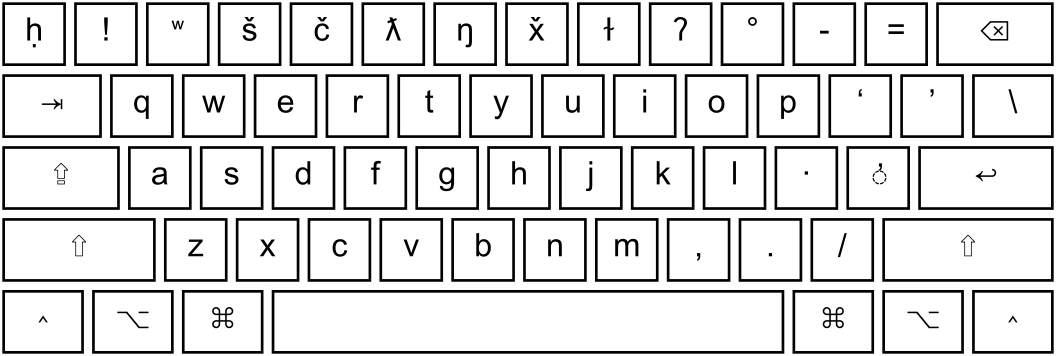
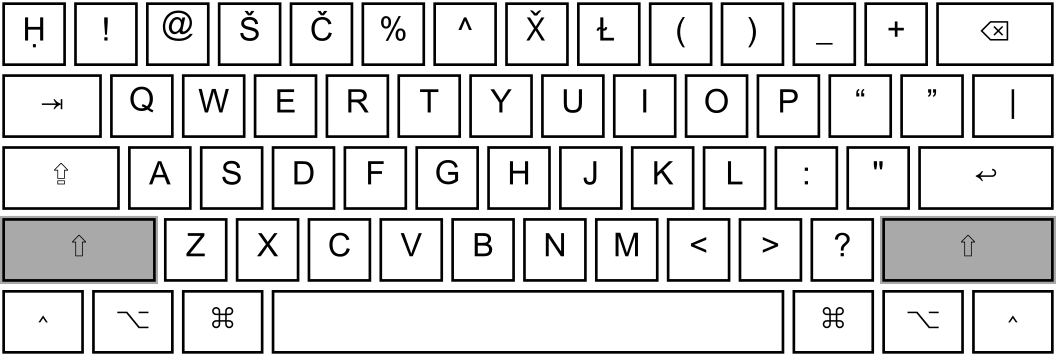
Use this guide to locate the letters, diacritics, and special characters used when writing Qʷi·qʷi·diččaq.
Install the Makah Keyboard
LanguageGeek provides the Qʷi·qʷi·diččaq keyboard for both Mac and Windows. On its keyboard page, scroll to Wakashan and select the Mac or Windows download beside Qʷi·qʷi·diččaq.
Mac Installation
- Download the Mac keyboard and unzip it.
- Move the .keylayout file into the Mac Library → Keyboard Layouts folder.
- Restart or log out, then open System Settings → Keyboard → Text Input → Edit.
- Add the keyboard from Other, then select it from the input menu.
Windows Installation
- Download the Windows keyboard and unzip it.
- Open the keyboard folder and double-click Setup.
- Approve the installation prompt, then restart Windows.
- Select the keyboard from the language or keyboard icon near the clock.
Tip: The installed keyboard may appear under its Native or English name. If you do not see it immediately, check the complete keyboard or input-source list.
Default
Shift
Alt
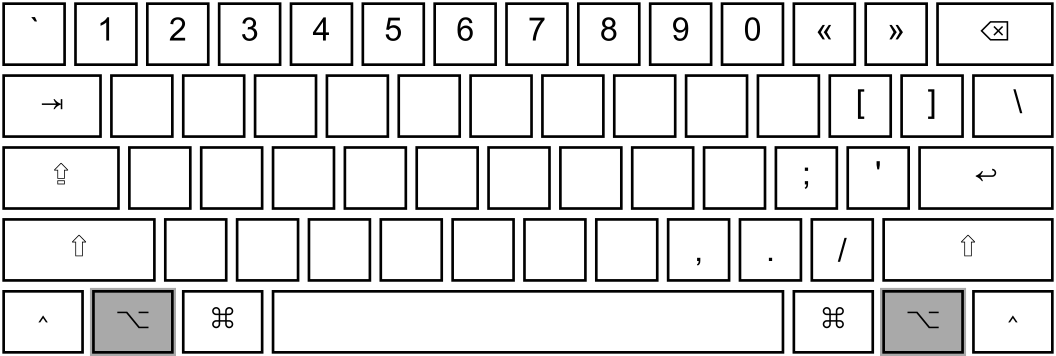
Using the Alt Layer
Depending on your computer and keyboard settings, the Alt layer may become active when:
- Either the Alt or Option key is pressed.
- The right Alt or Option key is pressed.
- Ctrl and Alt are pressed together.
Alt + Shift
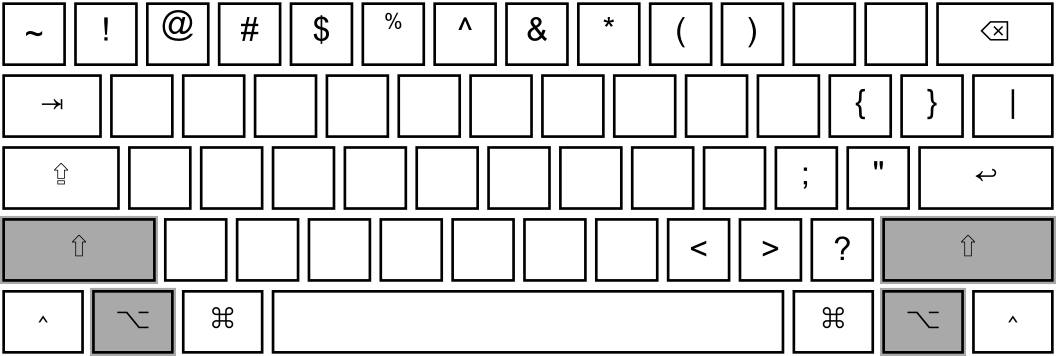
Remapped Key Sequences
The table below lists the keys and Unicode output required for the Qʷi·qʷi·diččaq keyboard. These sequences override the corresponding keys on a standard ANSI QWERTY keyboard.
| Key sequence | Preview | Unicode output |
|---|---|---|
| ` | ḥ | U+1E25 |
| ~ | Ḥ | U+1E24 |
| <AltGr>+` | ` | U+0060 |
| <AltGr>+~ | ~ | U+007E |
| 1 | ! | U+0021 |
| 2 | ʷ | U+02B7 |
| <AltGr>+2 | 2 | U+0032 |
| 3 | š | U+0161 |
| # | Š | U+0160 |
| <AltGr>+3 | 3 | U+0033 |
| <AltGr>+# | # | U+0023 |
| 4 | č | U+010D |
| $ | Č | U+010C |
| <AltGr>+4 | 4 | U+0034 |
| <AltGr>+$ | $ | U+0024 |
| 5 | ƛ | U+019B |
| <AltGr>+5 | 5 | U+0035 |
| 6 | ŋ | U+014B |
| <AltGr>+6 | 6 | U+0036 |
| 7 | x̌ | U+0078; U+030C |
| & | X̌ | U+0058; U+030C |
| <AltGr>+7 | 7 | U+0037 |
| <AltGr>+& | & | U+0026 |
| 8 | ɫ | U+026B |
| * | Ɫ | U+2C62 |
| <AltGr>+8 | 8 | U+0038 |
| <AltGr>+* | * | U+002A |
| 9 | Ɂ | U+0241 |
| <AltGr>+9 | 9 | U+0039 |
| 0 | ° | U+00B0 |
| <AltGr>+0 | 0 | U+0030 |
| [ | ‘ | U+2018 |
| { | “ | U+201C |
| <AltGr>+[ | [ | U+005B |
| <AltGr>+{ | { | U+007B |
| ] | ’ | U+2019 |
| } | ” | U+201D |
| <AltGr>+] | ] | U+005D |
| <AltGr>+} | } | U+007D |
| ; | · | U+00B7 |
| ' | ◌̓ | U+0313 |
| <AltGr>+; | ; | U+003B |
| <AltGr>+' | ‘ | U+0027 |
Technical Notes
- The apostrophe key outputs the combining character U+0313, combining comma above. It indicates a glottalized consonant; for example, k + ' produces ⟨k̓⟩.
- ⟨x̌⟩ and ⟨X̌⟩ are each represented by two Unicode code points. One keystroke therefore produces both code points.